> ## Documentation Index
> Fetch the complete documentation index at: https://docs.kode.diy/llms.txt
> Use this file to discover all available pages before exploring further.
# Applications
> Understand how applications work and how you can create yours.
# Applications of the Kode Dot
Open source communities are based on **sharing knowledge and resources.** That's why the main feature of the Kode Dot is that your **codes become applications** so you can **share them with other people and show your work.**
In addition, you can also **use applications created by other people and experiment with them.**
## How it works
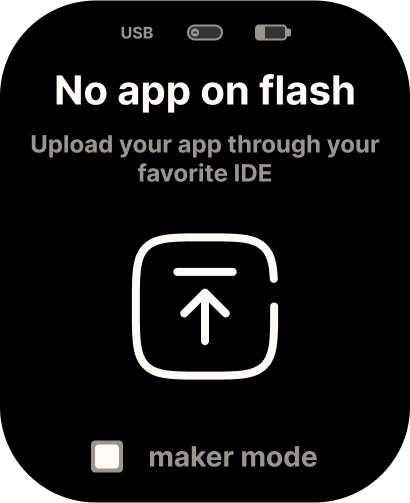
If **no code is uploaded to the flash**, you will see the following screen:
 When you program the code of your project in your favorite IDE, you can **upload it to your Kode Dot** as you do on any other platform.
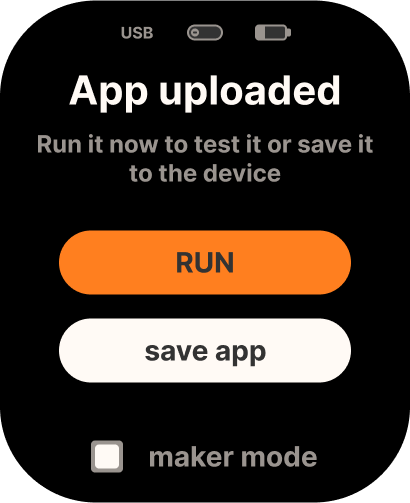
Once uploaded, on the screen of your Kode Dot you will see two options, **run the code directly or transform the code into an application and save it on your Kode Dot.**
When you program the code of your project in your favorite IDE, you can **upload it to your Kode Dot** as you do on any other platform.
Once uploaded, on the screen of your Kode Dot you will see two options, **run the code directly or transform the code into an application and save it on your Kode Dot.**
 ### Run
Depending on whether the **maker mode is activated or not**, the code you upload will run automatically or not.
If the maker mode is activated, you will see a **pop-up with a countdown of 3 seconds until the code runs.** You can **cancel the countdown and cancel the execution.**
If the maker mode is deactivated, the code **will not run automatically** and you can run it whenever you want by pressing the run button.
### Create an application
When you have the code validated and working, you can press the **create application** button. You can choose **if you want to change the name and select in which category you want to save it.**
## Application menu
By entering the **application menu, you will see all the available categories.** Although you can create your own categories, by default there are these:
* General
* Hacking
* GPIO
* USB
* Games
### Run
Depending on whether the **maker mode is activated or not**, the code you upload will run automatically or not.
If the maker mode is activated, you will see a **pop-up with a countdown of 3 seconds until the code runs.** You can **cancel the countdown and cancel the execution.**
If the maker mode is deactivated, the code **will not run automatically** and you can run it whenever you want by pressing the run button.
### Create an application
When you have the code validated and working, you can press the **create application** button. You can choose **if you want to change the name and select in which category you want to save it.**
## Application menu
By entering the **application menu, you will see all the available categories.** Although you can create your own categories, by default there are these:
* General
* Hacking
* GPIO
* USB
* Games
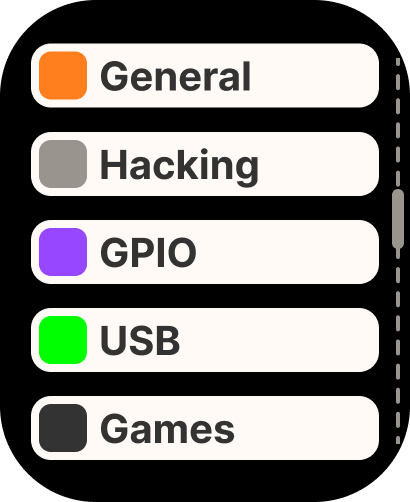 In each of them, you will see that there are already applications uploaded so you can **test them.**
## Add applications from other people
All **applications** of your Kode Dot are **stored on the microSD.** That's why, to add applications from other people, connect the **microSD to your computer** and copy the applications in the **category folder you want.**
In the future, you will be able to share applications between Kode Dots wirelessly or download them directly from the store.
In each of them, you will see that there are already applications uploaded so you can **test them.**
## Add applications from other people
All **applications** of your Kode Dot are **stored on the microSD.** That's why, to add applications from other people, connect the **microSD to your computer** and copy the applications in the **category folder you want.**
In the future, you will be able to share applications between Kode Dots wirelessly or download them directly from the store.